
One question per slide
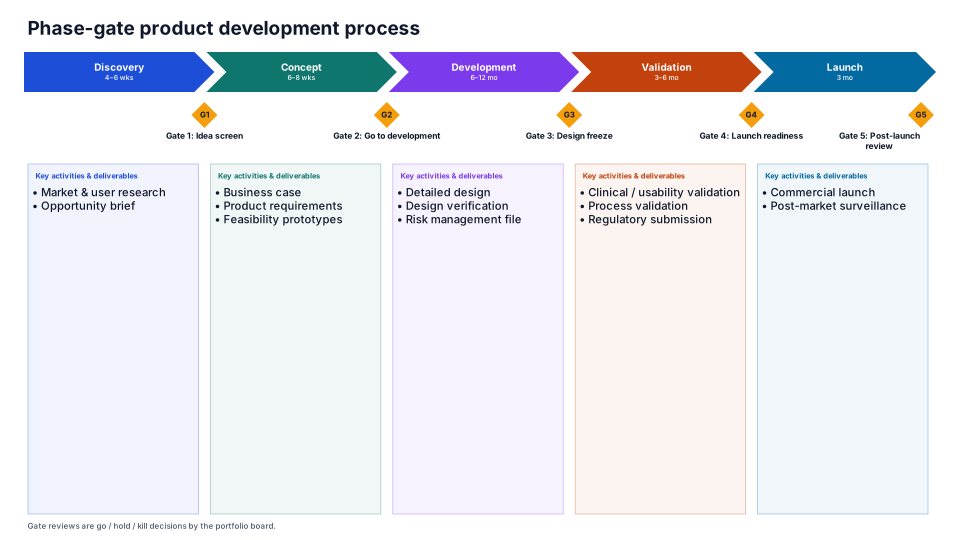
- How does our process work? The Phase-Gate Process diagram shows the stages as chevrons with their typical durations, gates G1 to G5, and the deliverables each stage owes. It has no dates.
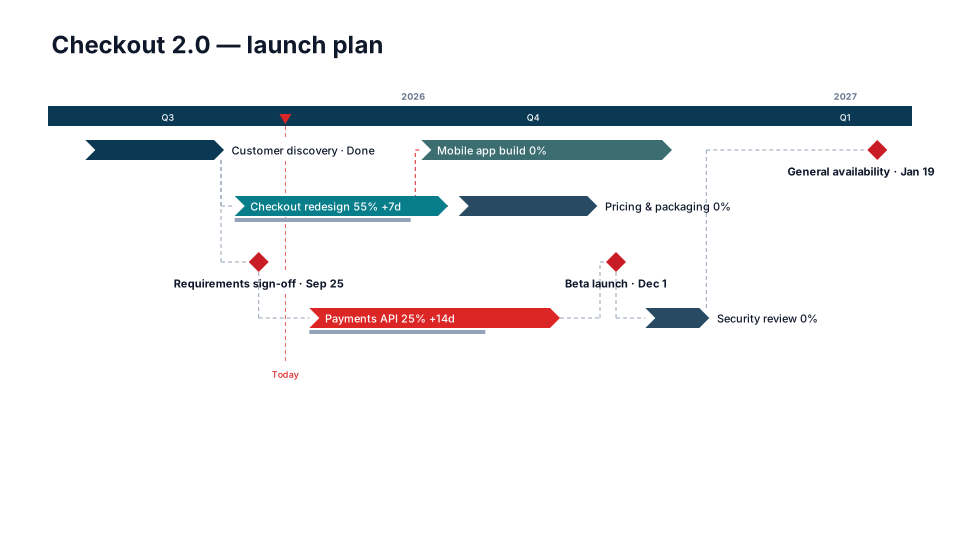
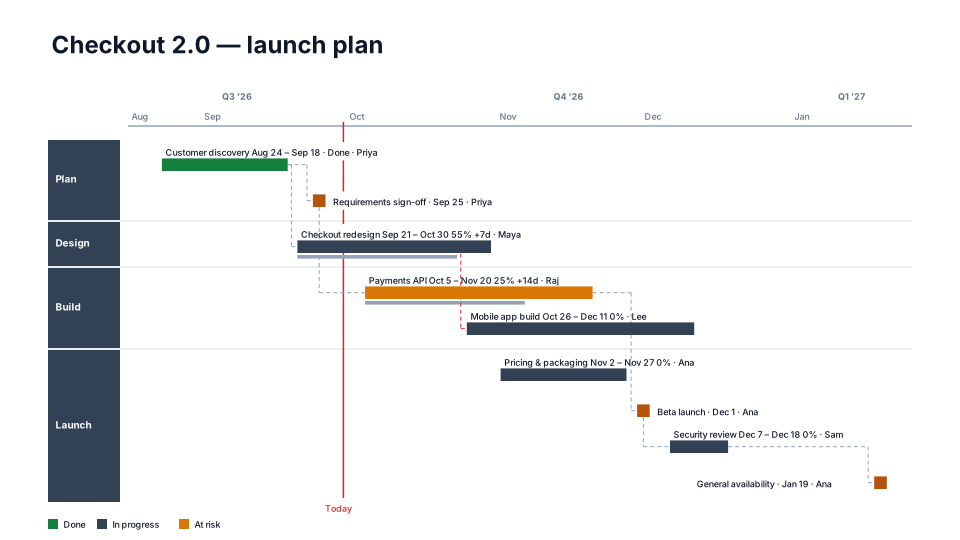
- When are the gates on this project? The Phase-Gate Review timeline puts the gates in their own lane as large dated diamonds, over slim bars for the stages.
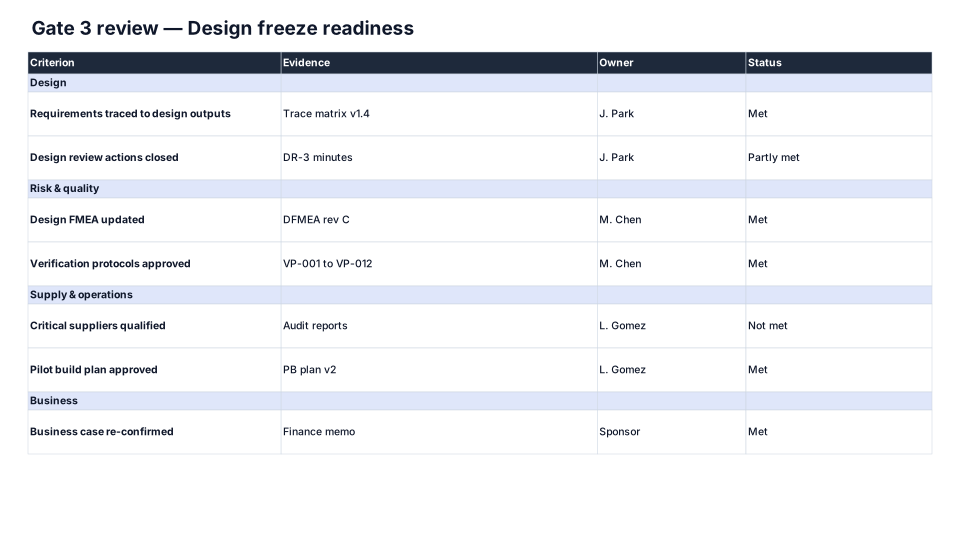
- Are we ready to pass this gate? The Gate Review Checklist lists each criterion with its evidence, its owner and a status of Met, Partly met or Not met.
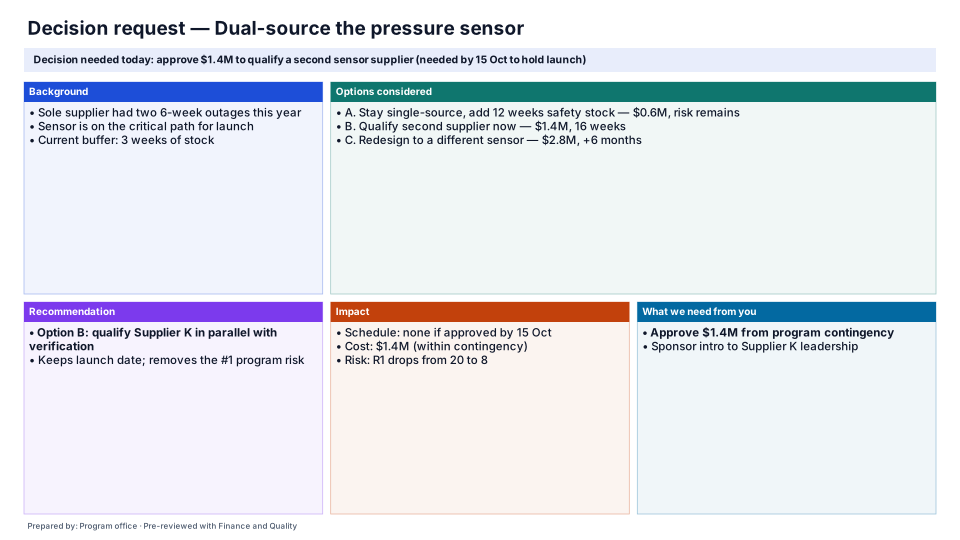
- What do we need the board to decide? The Decision Request sets out the ask, the options, a recommendation and its impact.
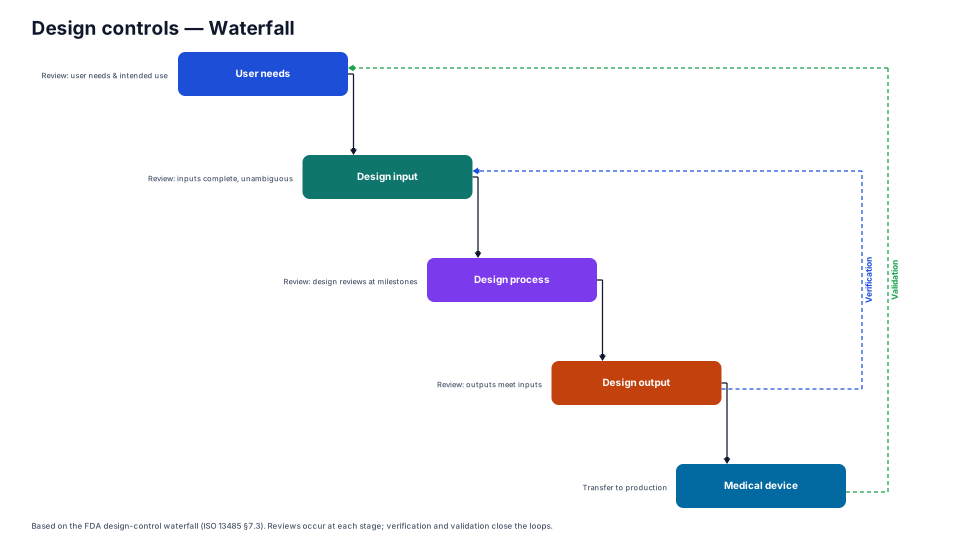
- Medical devices: the Design Controls (Phase Gates) timeline and the Design Controls Waterfall diagram (user needs → design input → design process → design output → device) for programs under ISO 13485 clause 7.3, which FDA's Quality Management System Regulation has incorporated by reference since February 2, 2026.
- Manufacturing: Manufacturing Transfer covers build, qualify and ramp, with the gate reviews as squares.
Running a gate review with them
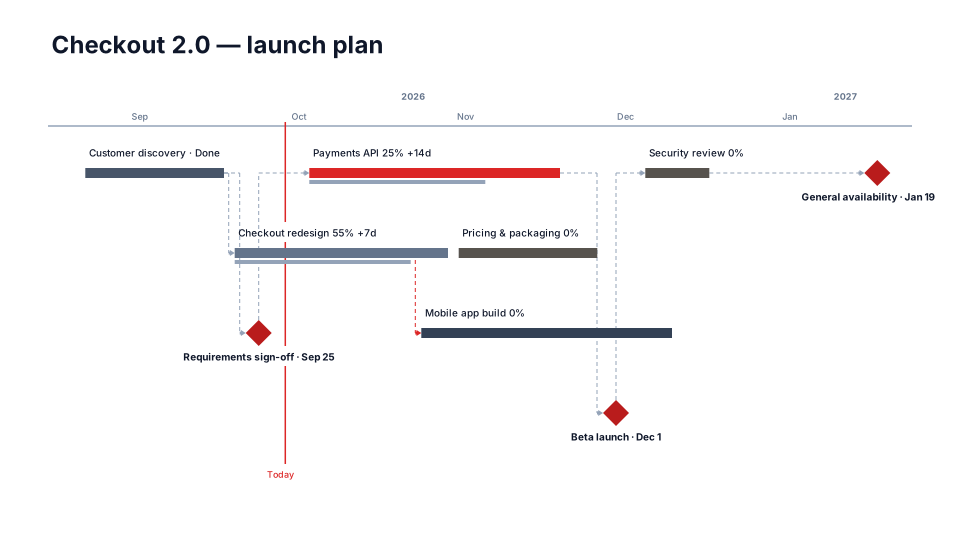
A typical pack opens with the process diagram, so newer members see where the project is in the process, then the review timeline with Today on it, then the checklist for the gate under review, and ends with the decision request. In the phase-gate approach that grew out of Robert Cooper and Scott Edgett's work in the 1980s, the outcome is one of four calls: Go, Kill, Hold or Recycle. Write the call into the gate's name on the timeline after the meeting ("Gate 3: Go"), and carry the conditions of a conditional Go onto the next gate's checklist so they're checked.
Keeping the dates honest
Save the timeline as the baseline when the gate plan is approved (Edit → Shift dates → Save as baseline). When a gate moves, its label shows the slip in days next to the new date, and the Plan vs Actual look shows every gate's drift on one slide. If the schedule lives in Microsoft Project, save it as XML and upload it in the Create tab: tasks, milestones and the baseline come across, and later updates match tasks by Project's task ID, so renamed tasks stay on the same bars.