
Asana to PowerPoint timeline: sections become swimlanes
Asana's timeline is fine for the team; leadership wants a slide. PMO Pilot reads Asana's CSV (Name, Section/Column, Assignee, Start Date, Due Date) and draws it as native PowerPoint shapes you can hand to anyone.
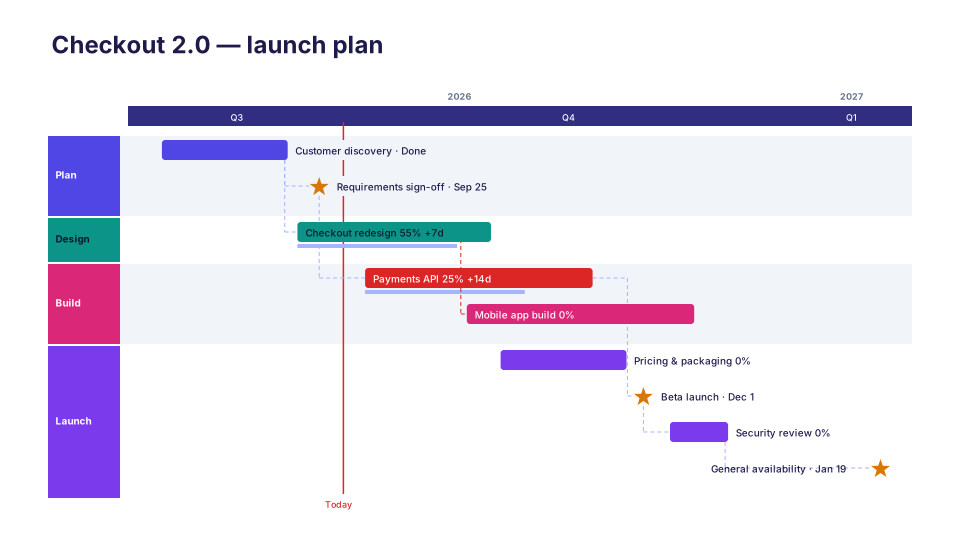
From Asana to the slide
- In Asana, open the project, click the dropdown next to the project name and choose Export / Print → CSV.
- In PowerPoint, open PMO Pilot → Create with AI → Upload Excel / CSV and pick the file.
- On the review screen, tasks with a start and a due date become bars; due-date-only tasks become milestones; sections become swimlanes.
- Press Insert on slide.
Which columns PMO Pilot reads
| Column in the Asana export | On the slide |
|---|---|
| Name | the bar or milestone label |
| Section/Column / Parent task | a swimlane |
| Assignee / Assignee Email | the owner |
| Start Date / Due Date | the bar; due date alone becomes a milestone |
| Task ID | the row id |
No column mapping step: headers are matched by name, in any order, and the review screen shows exactly what was read before anything touches the slide.
Worth knowing
- Add start dates in Asana (or a Start Date custom field) for tasks you want as bars rather than diamonds.
- Subtasks export as their own rows; filter them out for an executive slide.
Questions
Does PMO Pilot connect to Asana?
No. It reads the CSV export, so no Asana login goes into PowerPoint.
Can I refresh the slide later?
Export again and use Edit → Update from Excel / CSV (Pro); tasks are matched by name.
Looks that suit a Asana plan
- Free
Product Roadmap
Product & engineering 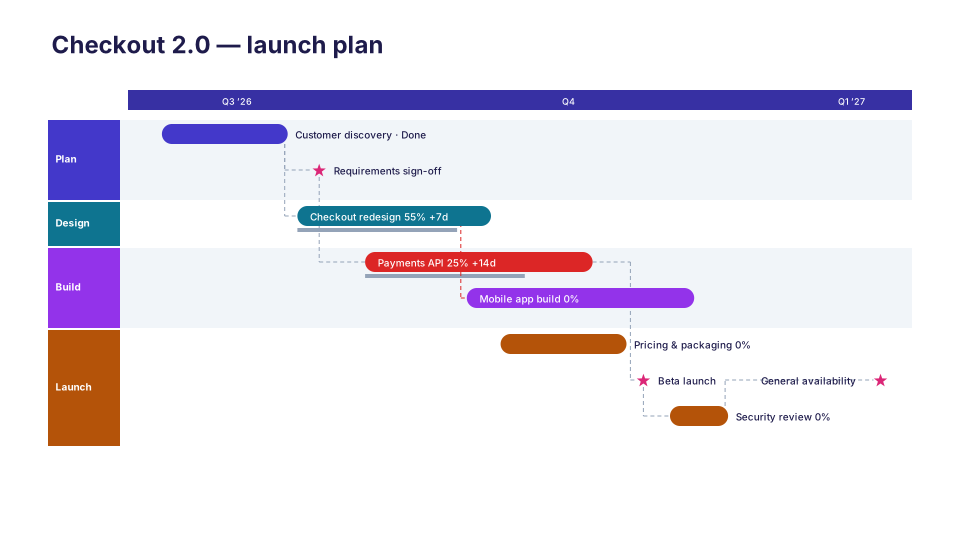
Now · Next · Later
Product & engineering- Free
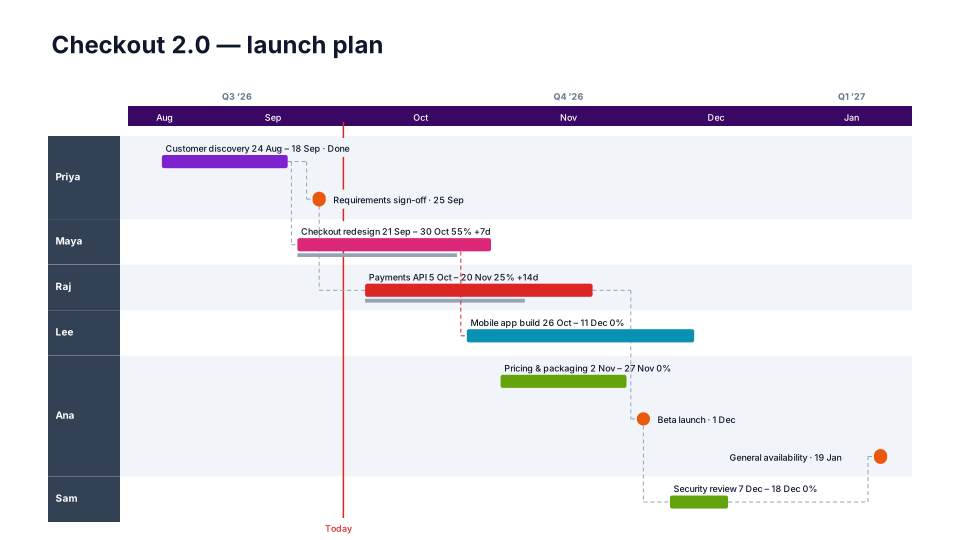
Campaign Calendar
Marketing & launch - Free
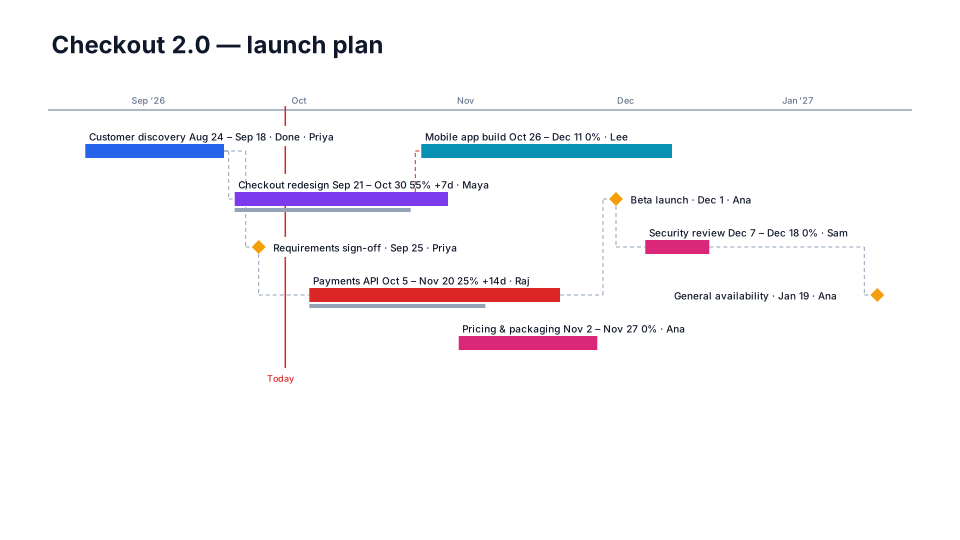
Classic
Program & PMO