
MS Project to PowerPoint Gantt chart in a few minutes
A Project file is the plan of record; the steering committee wants one slide. PMO Pilot reads the XML file Project saves (File → Save As → XML), or an Excel export with Project's own column names (Task Name, Start, Finish, Predecessors, Resource Names, % Complete), and draws a Gantt chart of native PowerPoint shapes, with the critical path outlined.
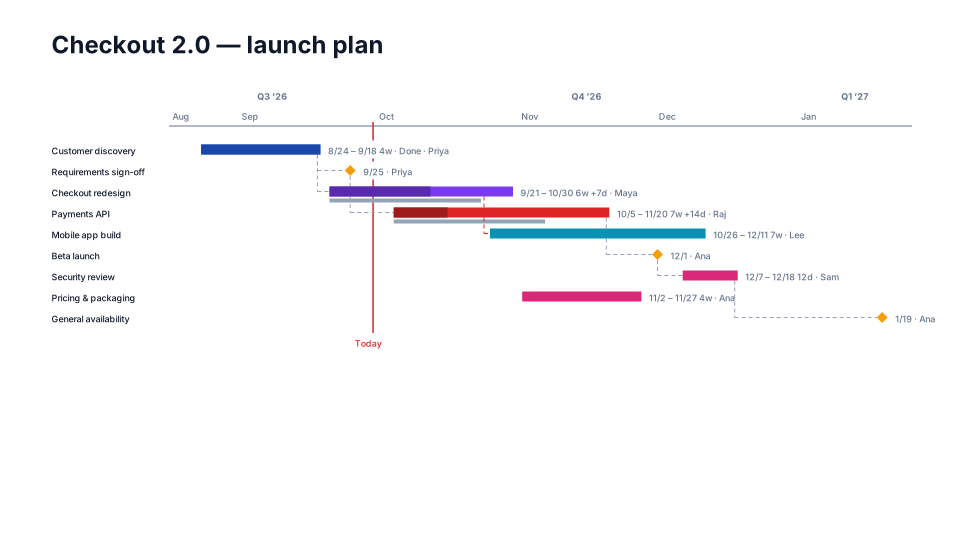
From Microsoft Project to the slide
- In Project, choose File → Save As and pick XML Format (*.xml) as the file type. The XML holds the whole plan: tasks, outline, links, resources and the baseline.
- In PowerPoint, open PMO Pilot → Create with AI → Upload Excel / CSV and pick the .xml file. It is read on your computer; nothing goes to the AI.
- Check the review screen: top-level summary tasks become swimlanes and aren't drawn as bars; links keep their type (FS, SS, FF, SF) and lag; inactive tasks are left out, and the screen says how many.
- Press Insert on slide. Turn on Critical path in the Style tab if you want the driving chain in red.
- Prefer a spreadsheet, or only some of the tasks? Show the columns you want in the Gantt Chart view (Task Name, Start, Finish, Predecessors, Resource Names, % Complete, Outline Level, Baseline Start / Baseline Finish), copy the rows including the headers or use File → Export → Excel, and paste or upload that instead.
Which columns PMO Pilot reads
| Column in the Microsoft Project export | On the slide |
|---|---|
| ID / Unique ID / WBS | the row number that predecessors refer to |
| Task Name | the bar's label |
| Start / Finish | the bar; equal dates become a milestone |
| Predecessors (3, 3FS+2d, 5SS, 7FF-1d) | dependency arrows with the right type and lag |
| Resource Names | the owner text |
| % Complete / Physical % Complete | the filled portion of the bar |
| Baseline Start / Baseline Finish | ghost bars for plan vs actual |
No column mapping step: headers are matched by name, in any order, and the review screen shows exactly what was read before anything touches the slide.
Worth knowing
- From the XML file: each task's Start and Finish, Milestone, % Complete, assigned work resources (as owners), Baseline (not Baseline 1–10) and predecessor links. Notes stay out of the slide.
- A slide holds up to 150 tasks. A larger XML imports the first 150 and says so; for an executive slide, filter to milestones and summary tasks in Project and copy or export that view instead, since the XML always holds the whole plan.
- In an Excel export, include the Outline Level column: summary rows then group the rows under them instead of appearing as extra bars. Dates like 'Mon 9/1/26' are read as Project writes them.
- Split across slides (Edit tab) puts one workstream per slide on the same timescale when the plan is long.
- Lag syntax from Project ('+2d', '-1w') is kept and shown in the relationship editor.
Questions
Can PMO Pilot open an .mpp file directly?
No. The .mpp format is proprietary, so PMO Pilot doesn't try. In Project, choose File → Save As and pick XML (or File → Export → Excel) and upload that file; if you pick an .mpp by mistake, PMO Pilot tells you exactly that.
Can I update the slide when the plan changes in Project?
Yes. Save the plan as XML again and use Edit → Update from Excel / CSV (Pro). Tasks are matched by Project's task ID, so a task renamed in Project still updates the same bar; labels you moved and colors you changed by hand stay where you put them.
Will the critical path match Project's?
For Finish-to-Start links it follows the same logic: the chain with zero float back from the finish. Start-to-Start, Finish-to-Finish and Start-to-Finish links are drawn and validated but don't yet drive the critical path.
Can I send changes back to Project?
Download CSV in the Edit tab gives you the plan (tasks, dates, owners, status, baselines, dependencies) as a file Project can import. Changes made in PowerPoint don't sync automatically.
Looks that suit a Microsoft Project plan
- Free
Detailed Gantt
Program & PMO 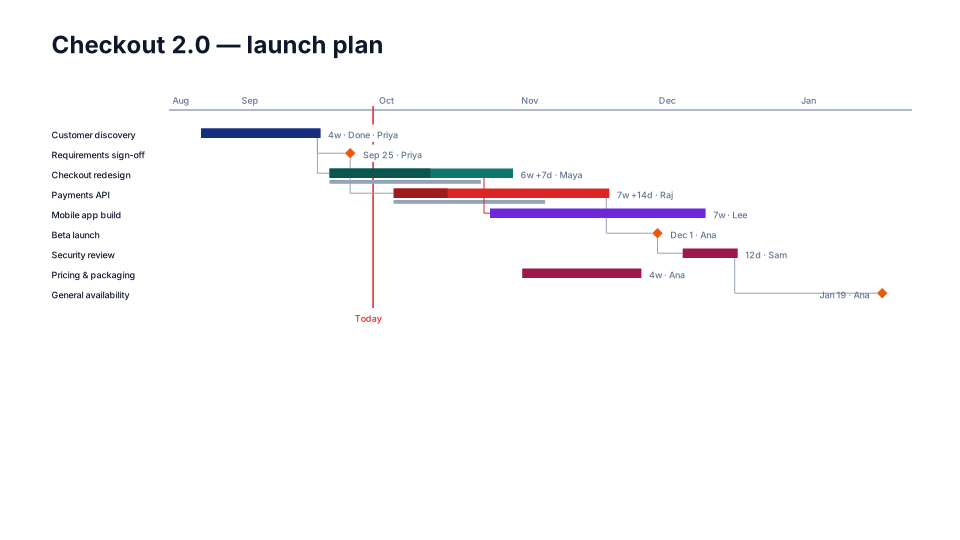
Engineering Gantt
Product & engineering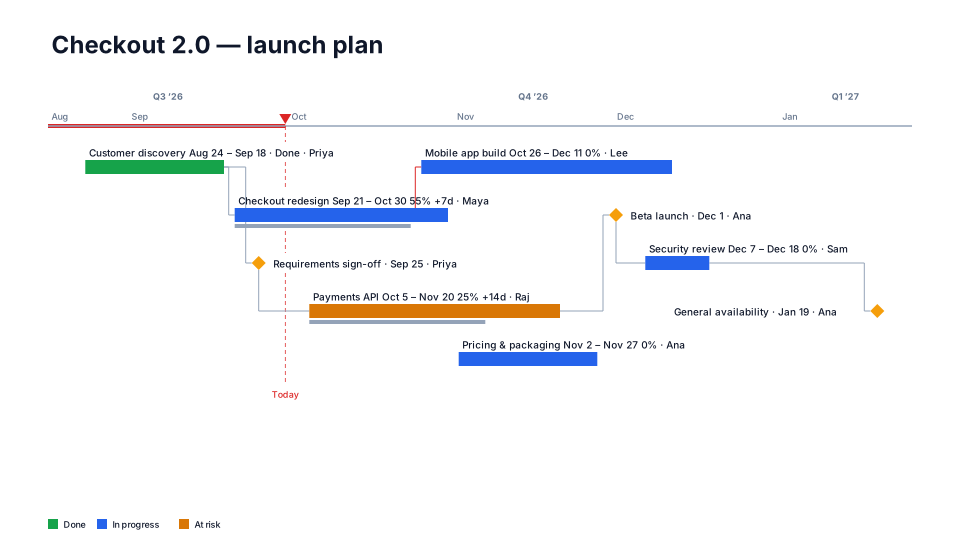
Critical Path Focus
Program & PMO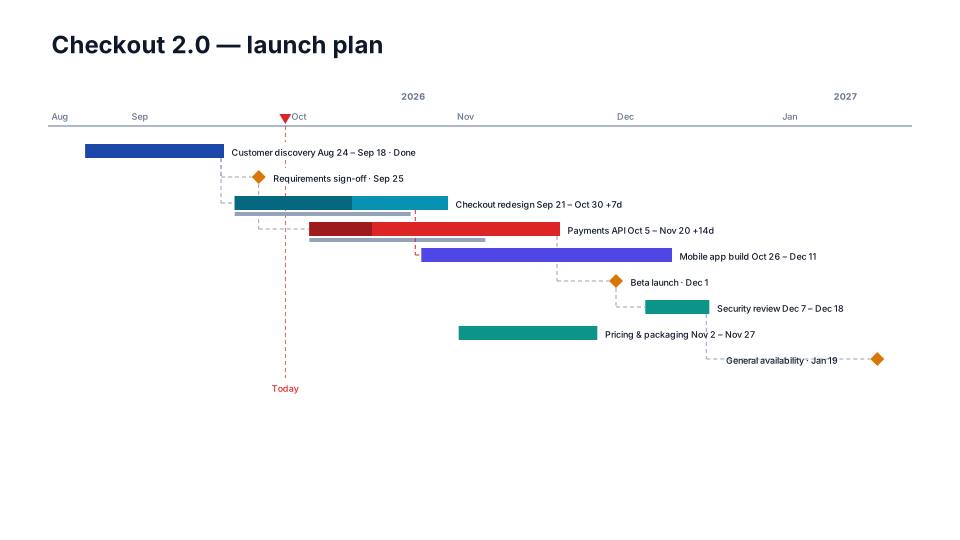
Plan vs Actual
Program & PMO