
Excel to PowerPoint timeline: paste a table, get a slide
Most plans live in a spreadsheet with a task column, two date columns and an owner. PMO Pilot reads that straight from the clipboard or an .xlsx file and draws it as native PowerPoint shapes, so the slide is editable by anyone and updatable next month.
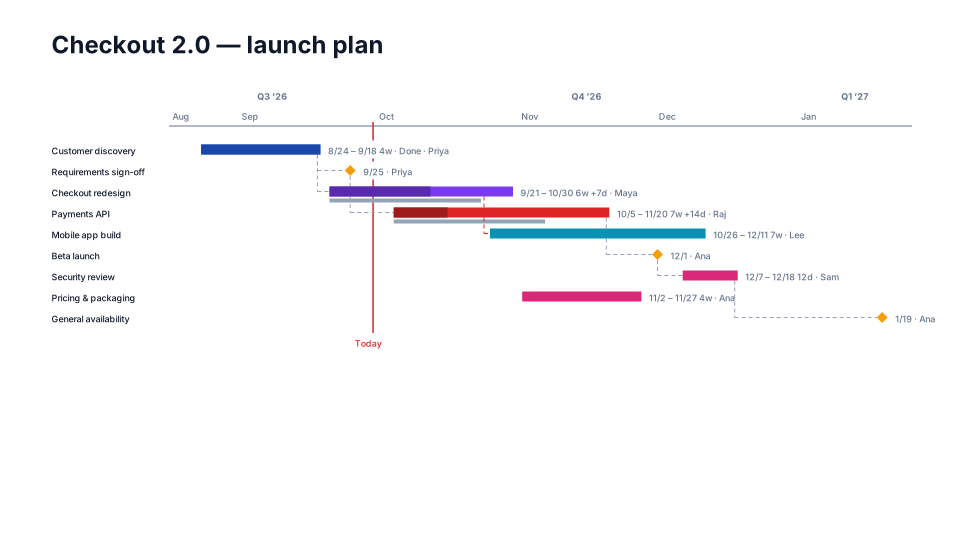
From Excel to the slide
- Select the rows you want on the slide, including the header row, and copy them (Ctrl+C / Cmd+C).
- In PowerPoint, open PMO Pilot → Create with AI and paste into the box (or press Upload Excel / CSV and pick the .xlsx file).
- Press Build timeline from table. The review screen lists every task with the dates it read; fix anything in place.
- Press Insert on slide.
Which columns PMO Pilot reads
| Column in the Excel export | On the slide |
|---|---|
| Task / Task name / Title / Activity | the bar's label |
| Start / Start date | where the bar begins |
| End / Finish / Due date | where the bar ends; a row with one date becomes a milestone |
| Owner / Assigned to / Resource | the owner text under the bar |
| Status / RAG | the bar's color (Done, On track, At risk, Late, Not started) |
| % complete / Progress | the filled portion of the bar |
| Phase / Workstream / Group | a swimlane |
| Predecessors / Depends on | dependency arrows and the critical path |
| Baseline start / Baseline finish | the ghost bar behind each task (plan vs actual) |
No column mapping step: headers are matched by name, in any order, and the review screen shows exactly what was read before anything touches the slide.
Worth knowing
- Dates can be in any common format; 'mid-Q4' or 'Nov' in a cell is read as text and flagged on the review screen.
- Excel serial dates (45839) are understood, so a column that shows dates but is stored as numbers still works.
- A percent stored as 0.75 is read as 75%.
- Spreadsheets are read on your computer. Nothing is sent to the AI unless you press Generate with AI on free text.
Questions
Do I need to rename my columns first?
No. PMO Pilot recognizes the common names for task, start, end, owner, status, percent, phase, predecessors and baselines. If a column isn't recognized, it is ignored and the review screen shows what was read.
Can I update the slide when the spreadsheet changes?
Yes. Edit → Update from Excel / CSV (Pro) reads the new file, shows what changed (new, moved, unchanged rows), and applies it. Tasks are matched by name; labels you moved and colors you changed by hand stay where you put them.
Does it work in PowerPoint for the web?
Yes. Windows, Mac and PowerPoint for the web with a Microsoft 365 subscription. Pasting works everywhere; file upload works everywhere too.
Looks that suit a Excel plan
- Free
Detailed Gantt
Program & PMO - Free
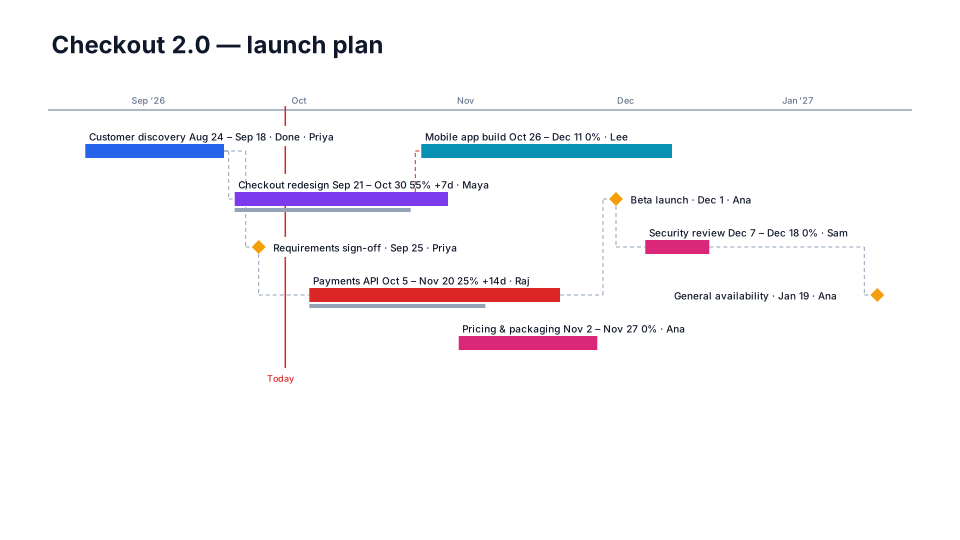
Classic
Program & PMO - Free
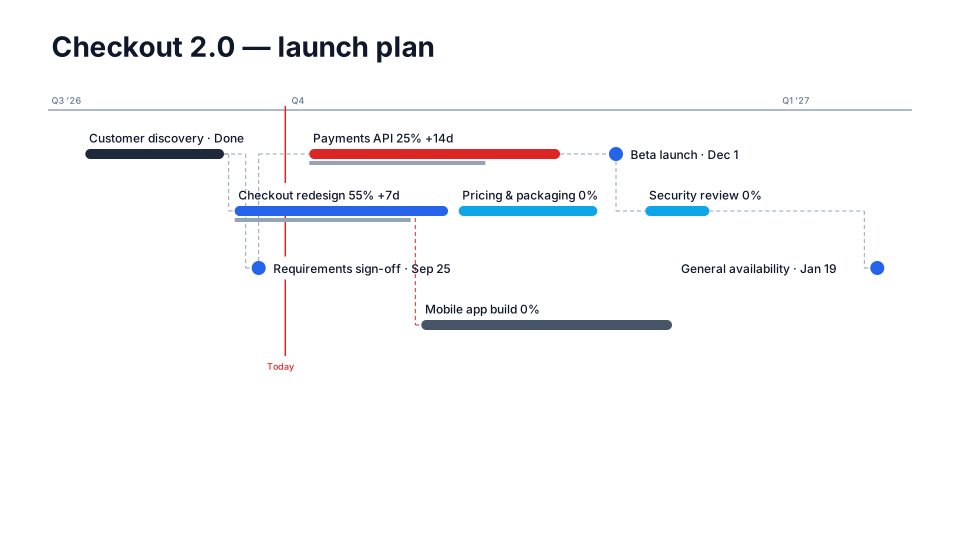
Executive Minimal
Executive & board 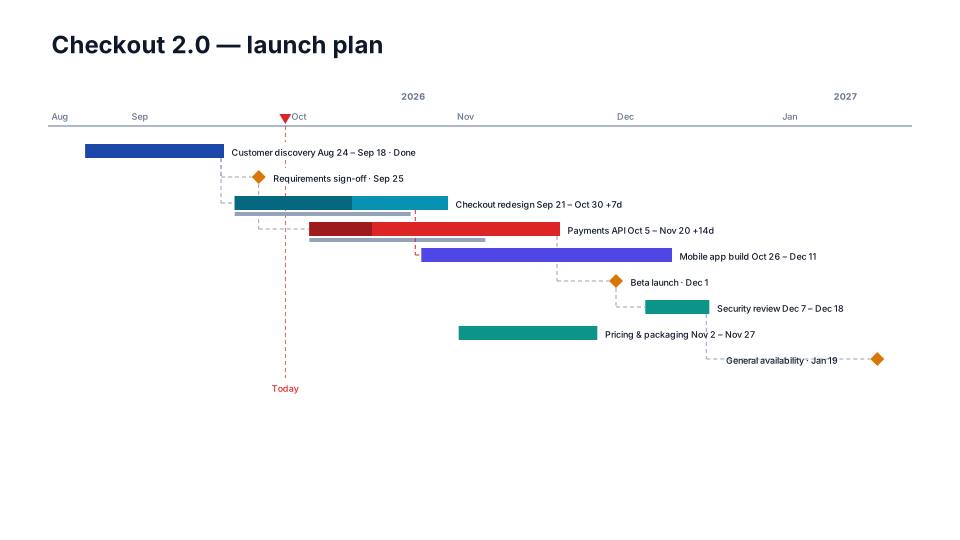
Plan vs Actual
Program & PMO